
Summary
WooCommerce is one of the most powerful and flexible platforms for running an online store. But here’s the part many store owners overlook: once your site is live, the real work begins.
If you’re not regularly maintaining your WooCommerce site, you’re setting yourself up for performance issues, security risks, and missed sales opportunities. It doesn’t matter how great your products are—if your site is slow, buggy, or offline, customers won’t stick around.
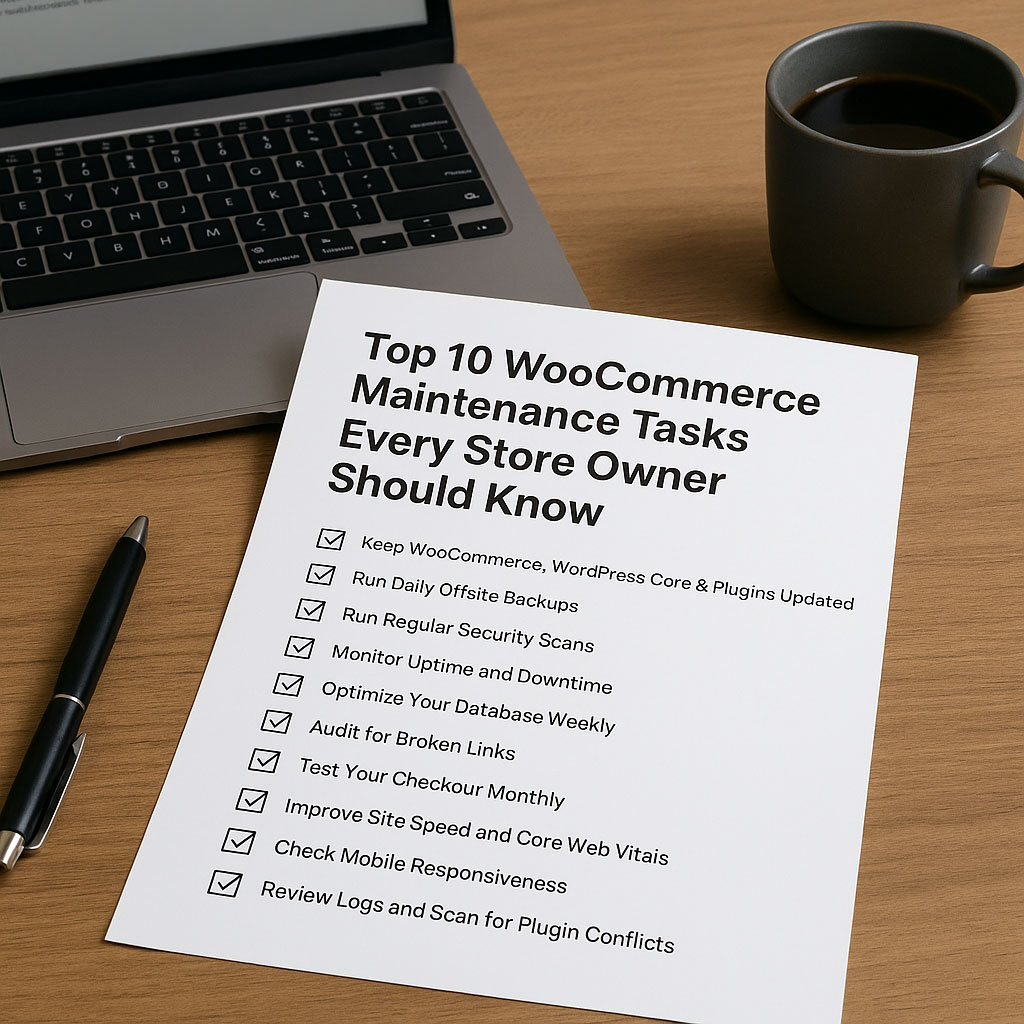
In this post, I’m going to walk you through 10 critical WooCommerce maintenance tasks that every store owner should have on their checklist. Whether you manage things yourself or use a WooCommerce Maintenance Service, these are the essentials that keep your store healthy, secure, and profitable.
1. Keep WooCommerce, WordPress Core & Plugins Updated
This one’s first for a reason. Outdated software is the #1 cause of hacked WordPress sites. Updates aren’t just about new features—they often include security patches and bug fixes.
But here’s the catch: always update in a staging environment first. Updating directly on your live site without testing can break your theme, plugins, or even your checkout.
A staging environment is a private copy of your live website where you can safely test changes—like plugin updates, theme tweaks, or new features—without affecting your actual site or users. It mirrors your real site’s setup, so you can catch and fix issues before pushing updates live. These are generally available with a few clicks on your hosting account's cPanel. Ask your hosting provider how to set one up on your server.
Quick tips:
- Check for updates weekly.
- Use tools like MainWP or ManageWP for safer, centralized updates.
- Keep WooCommerce itself up to date, but always test major updates thoroughly first.
🔗 Bonus: Need expert help? We offer WooCommerce maintenance plans that include safe update handling.
2. Run Daily Offsite Backups
If your site goes down or gets hacked, backups are your safety net. Without them, you're flying blind—and the cost of downtime or lost data can be brutal.
Set up automated daily backups, and store them somewhere off-site (not on your server). That way, if something breaks, you can restore it quickly.
Tools to consider:
Make sure your backups include:
- Files
- Database
- Product images and uploads
3. Run Regular Security Scans
eCommerce sites are juicy targets for hackers. Unfortunately, WordPress and WooCommerce sites are particularly common targets due to their widespread popularity.
Running regular malware scans and security audits can prevent serious damage. Use a plugin like Wordfence or Sucuri to catch threats early and block brute-force login attempts.
Also:
- Enable 2FA for all admin users
- Use strong passwords (no "admin123")
- Limit login attempts and hide the login URL
- Hide your login page with a plugin
✅ Pro tip: Schedule a weekly security scan and check the logs. It only takes 5 minutes and could save you a fortune.
4. Monitor Uptime and Downtime
Every minute your site is down, you’re potentially losing money, especially during high-traffic periods or ad campaigns.
Uptime monitoring tools notify you the moment your site goes offline. This allows you to act quickly, before your customers even notice.
Tools that work well:
- UptimeRobot
- Jetpack Monitor
- Pingdom (freemium)
Set it up once, and you’ll receive instant alerts by email or SMS if your site goes down.
5. Optimize Your Database Weekly
WooCommerce stores grow fast—and so does the clutter. Every product revision, cart abandonment, and spam comment bloats your database, slowing things down.
Regularly cleaning it helps improve performance and reduce server load.
Use plugins like:
- WP-Optimize
- Advanced Database Cleaner
- WP-Sweep
Things to clean:
- Post revisions
- Expired transients
- Spam comments
- Abandoned cart data
6. Audit for Broken Links
Broken links aren’t just bad for SEO—they’re bad for user trust. If a customer clicks on a product and gets a 404, you’ve probably lost them.
Scan your site at least monthly using:
- Broken Link Checker (plugin or online tool)
- Ahrefs (if you already use it)
- Screaming Frog
And when you remove a product or change a URL, always set up a 301 redirect.
7. Test Your Checkout Monthly
You might assume your checkout is working fine. But all it takes is a plugin update or API change from your payment gateway to cause issues—without you knowing.
Create a routine to test:
- Add to cart
- Coupon codes
- Shipping rate calculations
- Stripe or PayPal checkout
- Order confirmation emails
Also test on mobile. Small bugs on mobile devices can kill conversion rates.
8. Improve Site Speed and Core Web Vitals
Speed = revenue. If your store is slow, people bounce—and search engines take notice.
Run regular speed tests using:
- GTmetrix
- Google PageSpeed Insights
- Pingdom
Some speed tips:
- Compress and convert images to WebP
- Enable caching (WP Rocket is great)
- Remove unused plugins
- Use a CDN (like Cloudflare)
Fast-loading stores not only rank better but also convert more visitors into buyers.
9. Check Mobile Responsiveness
Over 60% of eCommerce traffic comes from mobile devices. That means your store needs to work perfectly on smartphones and tablets.
Test across:
- iPhones and Androids
- Tablets
- Multiple browsers (Safari, Chrome, Edge)
Look for:
- Overlapping elements
- Cut-off text or buttons
- Image scaling issues
Tools like Chrome’s mobile inspector or BrowserStack make testing easy.
10. Review Logs and Scan for Plugin Conflicts
Sometimes your site breaks silently. The front end looks fine, but under the hood, there could be PHP errors, plugin conflicts, or server warnings.
Check:
- WooCommerce logs (under WooCommerce > Status > Logs)
- Server error logs (via your host)
wp-config.phpdebug mode (only enable temporarily)
Don’t Want to Do All This Manually?
If this all sounds like a lot… it is. But it’s also what separates successful eCommerce sites from the rest.
That’s why we offer a hands-off eCommerce maintenance packages that handles all these tasks and more—so you can focus on growing your store, not fixing it.
Or check out our full range of eCommerce services if you need help with SEO, marketing, or site improvements.
📥 Download the Free WooCommerce Maintenance Checklist
Want a simple way to keep track of these tasks? We’ve created a free downloadable checklist you can use weekly or monthly.
👉 Click here to get the WooCommerce Maintenance Checklist PDF or view our WooCommerce maintenance guide.
It’s the same system we use for our clients—simple, effective, and easy to follow.
Final Thoughts
Maintaining your WooCommerce store isn’t optional—it’s essential.
These 10 tasks are what keep your store safe, fast, and ready to convert. Skipping them can lead to downtime, lost sales, and expensive fixes down the road.
If you’d rather have an expert handle this for you, check out our eCommerce maintenance packages or eCommerce services. We’ll keep your site in top shape while you focus on what you do best—running your business.

0 Comments